
Saving and loading
Save, Load and Share sit in the middle of the toolbar, after the view controls and before the Van menu. Saving a design to the cloud is a VanCAD Pro feature, and so is sharing one; Load is useful either way, because it is also where you start a new design and get back to the demo vans.
A design is saved whole - the van, everything in it, your routes, your openings, your custom objects and the van states - under a name you choose, and it opens again on any browser you sign in on. Share puts that same design behind a link anyone can open, with no account needed at their end.
Saving is deliberate; nothing is saved silently. Clicking outside the Save menu closes it without saving, and there is no save-on-blur. On a free account, though, your work in progress is kept in this browser as you go, so a crash or a reload does not lose it - and a reload resumes the session timer where you left it rather than handing you a fresh one. Editing time you have already used is kept with the design, so closing the tab neither refunds it nor spends it. With a subscription that local safety net is replaced by real cloud saving, so press Save when you want to keep something.
What it is. The toolbar button with the disk icon.
What it does. With a subscription it opens the Save menu below. Without one it opens the Save your design prompt instead - what saving would give you, and the way to subscribe.
Options and limits. The prompt is a description of the offer, not a wall in front of your work: dismissing it with Keep building puts you straight back in the design, which carries on exactly as it was.
During the Quick User Interface Guide tutorial both buttons are shown to everyone but do nothing, so the tour has a control to point at whatever your subscription, and a stray click cannot save the tour’s practice scene over your design or navigate away mid-lesson.
If you have a subscription and have not saved anything yet, a card appears beside this button once you are some way into a design, pointing out that VanCAD does not save as you build. It is shown once: it never returns after you dismiss it or use it, and it never appears at all once you have saved a design on your account.
What it affects. Nothing on its own.
What it is. The folder button beside Save.
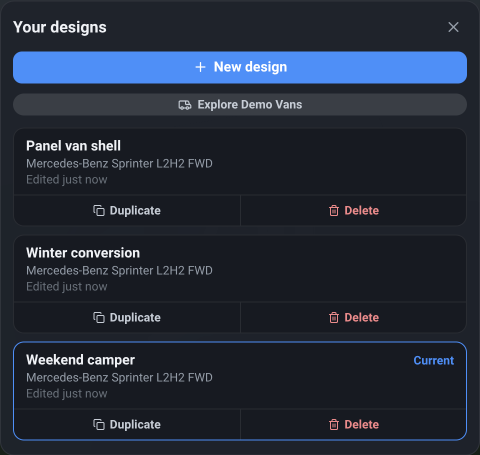
What it does. Opens Your designs.
Options and limits. It is not only a list of saved designs, which is why it is offered whatever your subscription: it also carries New design - which takes you to the van picker to start a fresh build - and Explore Demo Vans, for getting back to the demo gallery mid-build.
With a subscription, each saved design is a row showing its name, its base van and when you last edited it; clicking it opens it, and the row carries Duplicate and Delete. The design you already have open is marked Current and cannot be re-opened over itself. A row can also show a badge: pending while a save is still on its way to the cloud, or conflict if the same design was changed elsewhere - see below. A save made while you are offline is queued rather than lost, and its row keeps the pending badge until the connection returns, so that badge is also how you tell the cloud is out of reach.
Without a subscription there are no rows to open, and a panel explains where saved designs would appear. If you have subscribed before, the designs you saved then are still listed - each marked Locked, under a line saying how many are waiting - because they are kept on your account, not deleted. Clicking one, or Subscribe to open them, opens the subscription prompt; once your subscription is active again they open as they did before. The Get started screen says the same count, so you can reach this list on the way in rather than having to start a build first.
What it affects. Opening a design replaces what you have open, so save first if you want to keep it.
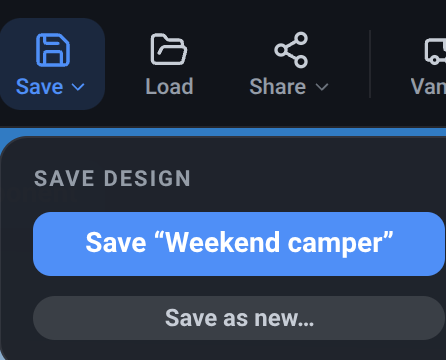
What it is. The primary button in the Save menu. On a design you have saved before it reads Save “your design’s name”; on one you have never saved it is a plain Save under the name field.
What it does. Writes the design to the cloud under that name. On a design you have saved before it replaces that saved version rather than adding a second one.
Options and limits. The button reports what is happening: Saving… while the save is on its way, then a green Saved ✓ for a couple of seconds - and that tick only appears once the cloud has actually confirmed it, not merely because the app has queued it. The menu stays open so you can read the result.
If a save fails, the reason is shown at the foot of the menu. A save made while you are offline is queued and goes up when the connection returns.
If the name is already taken by another of your designs, it is saved under a numbered variant instead and a note tells you which - two saved designs never share a name.
What it affects. Your saved copy of this design.
Design name
Section titled “Design name”What it is. The text field shown in the Save menu the first time you save a design.
What it does. Names the design.
Options and limits. It arrives pre-filled with the name the app assigned when you started - Untitled design, numbered if you already have one - and you can replace it with anything. Pressing Enter saves.
This is the moment a design gets its identity: from then on the menu offers Save “that name” and this field is gone. If the save fails, the rename is undone with it, so a design is never left renamed but unsaved.
There is no rename for a design afterwards. To change a name, use Save as new… under the name you want, then delete the old one from Your designs if you no longer need it.
What it affects. The design’s name, on the save that follows.
Save as new
Section titled “Save as new”What it is. The Save as new… button, shown under Save once a design has been saved at least once.
What it does. Opens a small form for saving a copy under a different name. The design you saved before keeps whatever you last saved to it.
Options and limits. Once the copy is saved, it is the design you are editing: the Save button then reads Save “the copy’s name”, and the next plain Save goes to the copy, not the original. Undo carries on working across the switch. To go back to the original, open it from Load.
What it affects. Nothing until you confirm.
New design name
Section titled “New design name”What it is. The text field the Save as new… button reveals.
What it does. Names the copy.
Options and limits. It is pre-filled with your design’s name followed by (copy), already made unique, so pressing Enter straight away is a sensible action. Any name is allowed, and a clash is numbered rather than refused.
What it affects. The copy’s name.
Save copy
Section titled “Save copy”What it is. The Save button under the new-name field.
What it does. Saves the copy, switches the editor to it, and confirms with a note naming what it saved.
Options and limits. It is greyed while the name is blank. The form closes afterwards, leaving the menu open on the note.
What it affects. Adds a design to your saved designs.
Cancel
Section titled “Cancel”What it is. The ghost button beside it.
What it does. Closes the copy form and returns the menu to its normal Save view.
Options and limits. Nothing is saved and the name you typed is discarded.
What it affects. Nothing.
What it is. The button with the share glyph, beside Load.
What it does. With a subscription it opens the Share menu below, which puts the design behind a link. Anyone you send that link to can view your design in 3D in their browser - on a phone as well as a computer - with no account needed and nothing to install. They see it read-only: they can look round it, but they cannot change it, and nothing they do reaches your design.
Without a subscription it opens the Share your design prompt instead, which is the offer rather than a wall: dismissing it puts you straight back in your design.
Options and limits. One link per design. What a visitor is shown is the van model as the title - never the name you gave the design, and never your name or email. A shared design can be stopped at any time, and it stops immediately for everyone.
If your subscription lapses, your links are paused rather than deleted: someone following one is told the design is not available, and subscribing again brings every link back exactly where you posted it.
What it affects. Nothing about the design itself.
Share this design
Section titled “Share this design”What it is. The primary button in the Share menu. On a design you have never saved it reads Save and share, under a name field.
What it does. Creates the link. On a never-saved design it saves the design first, under the name you typed, and then shares it - a design has to be saved before it can be shared, so the menu does both rather than sending you to Save and back.
Options and limits. Under the button is a line saying that anyone with the link can view the design, with a link to our Terms. If the design is still on its way to the cloud - you are offline, or the save has only just been made - sharing says so and is worth trying again in a moment.
What it affects. Creates a link. It does not change the design.
What the link shows
Section titled “What the link shows”What it is. The two-option switch in the Share menu: Follows saves or Frozen copy.
What it does. Decides whether the people holding your link see the design as you go on working on it. Follows saves means every save you make reaches the link. Frozen copy takes a copy now and shows that, whatever you do to the design afterwards.
Options and limits. Follows saves is the default, and it is what most sharing wants: you send somebody your layout, change your mind about the bed, and they see the change next time they look. Frozen copy is for a design you want to stay put - a version you posted somewhere, or a layout you are asking people to compare against. You can change your mind either way at any time; switching to a frozen copy freezes it as it is now.
What it affects. What visitors see. The link itself does not change.
Your share link
Section titled “Your share link”What it is. The address in the Share menu, shown once the design is shared.
What it does. It is what you send people. It stays the same for as long as the design is shared.
Options and limits. The address is a share code, not your design’s name, so it gives nothing away about the design or about you. If you stop sharing and share again, you get a different link - the old one is gone for good. Under the link is a count of how many times it has been opened; it counts opens rather than people, so a reload counts again.
What it affects. Nothing.
Copy link
Section titled “Copy link”What it is. The button under the link.
What it does. Puts the link on your clipboard, ready to paste into a message, an email or a forum post. It confirms with Copied to clipboard for a couple of seconds so you know it worked.
Options and limits. It does the same thing on every device - it never hands the link to your operating system’s own share menu. If your browser will not give the page the clipboard, the button is not shown at all and the link above it is there to select and copy by hand.
What it affects. Nothing.
Update the shared copy
Section titled “Update the shared copy”What it is. A button shown only while the share is a frozen copy.
What it does. Refreshes the frozen copy from your design as it is now, so the link shows your latest work.
Options and limits. Under it is a line saying when the copy was last refreshed. There is nothing to do here on a share that follows your saves - it is already up to date.
What it affects. What visitors see, from the moment you press it.
Stop sharing
Section titled “Stop sharing”What it is. The last button in the Share menu.
What it does. Deletes the link. Anyone who follows it afterwards is told the design is no longer available - they are not told why, and they are not told whose design it was.
Options and limits. It asks first, because a link may be somewhere you cannot take it back from. Sharing the same design again afterwards gives you a new link; the old one never works again. Deleting the design from Your designs stops its share too, and the delete confirmation says so.
What it affects. The link, immediately. The design is untouched.
Cancel
Section titled “Cancel”What it is. The button beside Stop sharing once it has asked.
What it does. Leaves the share exactly as it was.
Options and limits. Nothing changes and the link keeps working.
What it affects. Nothing.
When the same design is edited in two places
Section titled “When the same design is edited in two places”Because a design lives on your account, it can be changed on one device while another still has an older copy of it open. If that happens the save is refused rather than allowed to overwrite silently, and the design’s row shows a conflict badge. A Design changed elsewhere dialog shows when each version was last edited and offers three ways out: Keep mine (overwrite theirs), Keep theirs (discard my edits), or Save mine as a copy, which keeps both. Dismissing the question does not resolve it - the badge stays until you choose.
Related
Section titled “Related”- Sessions and limits - what a free session keeps for you, and what a subscription changes.
- Subscription - subscribing, and managing an existing subscription.
- Your account - signing in and out.