
The Object List
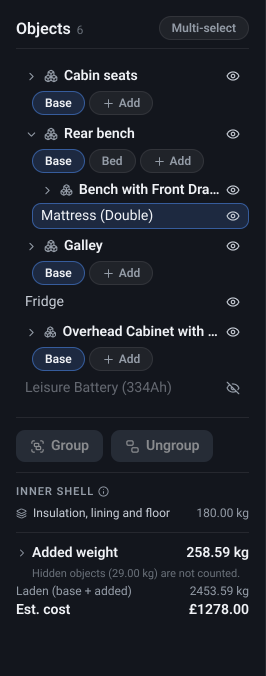
The Object List is the panel down the side of the editor holding every object in your design. It is the reliable way to reach something you cannot easily click in the 3D view - an object inside a cupboard, behind a wall panel, or hidden underneath something else.
The panel
Section titled “The panel”What it is. A scrolling list of every object in the van, in the order it was added, with groups shown as expandable parents and their members indented beneath them. Cable and pipe runs appear here too.
What it does. It mirrors the 3D view both ways. Selecting a row selects that object in the scene and opens the Inspector for it; selecting an object in the scene highlights its row. Selecting a group highlights every row belonging to it.
Options and limits. The list is always visible in the editor - it is not a mode you enter. When the catalogue drawer is open it slides over the list; close the drawer to get back to it. Its footer carries the Group and Ungroup actions and, for a selected group, the group’s saved states.
What it affects. Nothing on its own. It selects, renames and hides; every one of those is covered below.
Object rows
Section titled “Object rows”What it is. One row per object, showing its name. A warning triangle appears on a row whose object has a problem the app can detect - an opening that no longer fits the current van, for example.
Two more marks can follow the name. A raw material shows its cut size, which is how you tell several sheets of the same ply apart. A dashed square marks a reference: an object kept in place as a guide and left out of the bill of materials. It is a different thing from hiding, and a row can be both.
What it does. A single click selects the object and opens the Inspector on it. A double-click turns the name into a text box so you can rename it: Enter commits, Escape cancels, and clicking away also cancels.
Options and limits. Names are yours to choose and do not have to be unique - they are labels, not identifiers, so renaming an object never breaks anything that refers to it. Renaming is disabled in read-only views, such as the demo explorer.
A row selects exactly what it names, which is what makes this list the way to reach one object inside a group: expand the group and click the member’s own row. Clicking that same object in the 3D view selects the whole group instead, because a group moves as one - see Click into groups if you would rather the 3D view could step inside as well.
What it affects. The name you give an object is the name it appears under in your bill of materials, so it is worth naming the things you will be buying. The list’s foot carries the running totals - Added weight (which expands into a figure per axle and a weight map), Laden and Est. cost.
Expand and collapse
Section titled “Expand and collapse”What it is. The chevron on a group’s row.
What it does. Shows or hides that group’s members in the list. It is its own click target, so opening a group never changes what is selected.
Options and limits. Only group rows have one. Groups can contain groups, and each level expands independently.
What it affects. The list only. Expanding a group does nothing to the 3D view.
Show and hide
Section titled “Show and hide”What it is. The eye icon at the right-hand end of a row. A crossed-out eye means the object is currently hidden.
What it does. Hides the object in the 3D view without removing it from the design - useful for seeing past a wall panel, or working on what is behind a cupboard door.
Options and limits. Hiding a group hides everything in it, and a member’s own eye is disabled while that is the case: the group’s hide is an override the member cannot clear on its own. Show the group again to get the member’s control back. Cable and pipe runs have no eye of their own - use the route view filter in the Systems menu, which dims, shows or hides a whole system at once.
What it affects. The 3D view, and the weight totals. A hidden object is still part of your design - hiding is not deleting, a hidden object is saved and reloaded hidden, and it stays in the bill of materials and the cost total. But its weight leaves the Added weight and Laden totals, and the per-axle split under them, until you show it again: a hidden object is not in the van as you are looking at it. A line under the total says how much is out, so hiding a tank to see behind it cannot quietly lighten your figures.
Multi-select
Section titled “Multi-select”What it is. A toggle in the panel’s header.
What it does. With it on, clicking rows adds each one to the selection instead of replacing it, so you can pick several objects by clicking them one after another - then Group them, or edit them together.
Options and limits. It is sticky: it stays on until you turn it off, which is what makes it work on a touchscreen where there is no Shift key to hold. Group is enabled once two or more objects are selected.
What it affects. The selection only.
Related
Section titled “Related”- Grouping and van states - what to do with a multi-selection once you have one.
- Guide: Introduction to “States”.
- Tutorial: Group and arrange, in the app under Tutorials.