
The catalogue
The catalogue is where everything you put in the van comes from: beds, units, appliances, tanks, batteries, and the raw structural pieces you build fitted furniture out of.
Add component
Section titled “Add component”What it is. The button at the top-left corner of the 3D view.
What it does. Opens the catalogue.
Options and limits. On a narrow window the catalogue is a bottom sheet reached from the Catalogue tab instead, and this button is not shown.
What it affects. Nothing on its own.
The catalogue
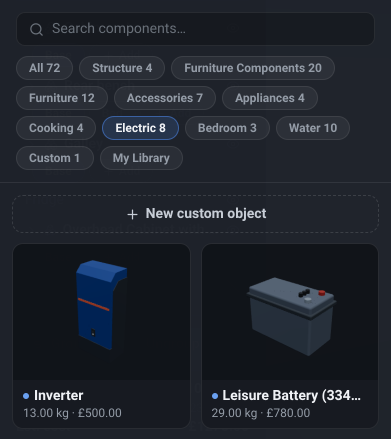
Section titled “The catalogue”What it is. A drawer that slides in over the Object List: a search box and a row of category chips at the top, then a grid of cards.
What it does. Lets you browse or search for a component and drop it into the van. Each card carries a 3D thumbnail of the object, its name, and its weight and cost, so you can compare two options before placing either.
Options and limits. It stays open while you place things, so you can drop several components in a row without reopening it. It covers the Object List while open - close it to get back to the list.
What it affects. Nothing until you place something.
Close catalogue
Section titled “Close catalogue”What it is. The close control on the drawer’s header.
What it does. Closes the drawer and returns the Object List.
Options and limits. Nothing is lost: your search text and the chip you had selected are not preserved between openings, but nothing you placed is affected.
What it affects. Nothing.
Search
Section titled “Search”What it is. The search box at the top of the drawer.
What it does. Filters the grid as you type, in up to three bands.
The first band is the plain one: components whose name contains what you typed, within the category chip you have selected. Under it, when there is anything to show, come two more, each with its own heading:
- In other categories… - name matches that the category chip was hiding. It appears only when the chip found no component itself, so a chip you forgot you had selected can no longer turn a hit into a miss.
- You might be looking for… - components matched by one of their backup words rather than by their name. Every component carries a small set of them: synonyms, the room or system it belongs to, and the neighbouring things you might have meant. So “kitchen” reaches the hob, the sink, the fridge and the worktop; “sofa” reaches the benches; “wash basin” reaches the sink. Because these are weaker matches they always sit below the real ones - search “stove” and the Portable Gas Stove comes first, with the induction hobs offered underneath.
Options and limits. It matches names and backup words, not dimensions or descriptions. In the My library view it filters your saved objects by name alone - your own objects have no backup words, because only you know what you meant by them.
What it affects. What the grid shows.
Categories
Section titled “Categories”What it is. The row of chips beneath the search box, each with the number of components in it: All first, then the catalogue’s categories - bedroom, cooking, electric, water, structure, accessories, furniture components and so on - then Custom, and finally My library.
What it does. Filters the grid to one category.
Options and limits. The chips come from the catalogue itself rather than from a fixed list, so a category appears when there is something in it. Custom is the permanent home of every custom object you have built in this design; a custom object also appears under whichever category you filed it in when you saved it, so it can be found either way.
What it affects. What the grid shows.
Catalogue items
Section titled “Catalogue items”What it is. The grid of cards itself.
What it does. Shows every component matching the current chip and search, built-in components first and your custom objects after them.
Options and limits. A card whose thumbnail has not finished rendering shows a coloured placeholder tile in the category’s colour; the picture arrives shortly after.
What it affects. Nothing until a card is pressed.
Tool signposts
Section titled “Tool signposts”What it is. A card with a spanner on it instead of a picture, which appears in the search results only. Today there is one: Windows & openings.
What it does. Answers a search for something VanCAD makes with a tool rather than with a component you place. Searching for a window is the case it exists for: there is no window component, because a window is a hole in the van rather than an object standing in it, so the card explains that and offers to show you the Openings tool on the toolbar.
Options and limits. Pressing it opens an explanation; Show me replaces that with a tip pointing at the tool’s toolbar button, and pressing the tip opens the menu. Nothing is placed and nothing changes in your design either way. The card appears under a search only - it is a signpost, not a component, so it is never in the grid when the box is empty and never in the bill of materials.
What it affects. Nothing in the design.
What it is. The card itself - the whole tile is the button.
What it does. Drops a copy of that component into the van and selects it, opening the Inspector on it with its handles showing, so you can drag it into position straight away.
Options and limits. A placed component lands centred across the van, resting on the floor, and each successive placement lands a little further back down the van so that a run of components does not pile up in one spot. It is one undoable step. What you place is a copy: editing it later changes that copy and nothing else.
What it affects. Your design, your Added weight total, and your Est. cost - a component brings the catalogue’s estimates for both with it, and you can correct them on the object.
New custom object
Section titled “New custom object”What it is. The dashed button above the grid.
What it does. Opens the custom-object editor, where you build a shape of your own out of simple solids and save it into this design’s catalogue - then place it like any other component.
Options and limits. The editor is a mode of its own: the van editor waits behind it, and your free session clock is paused while you are in there. Some tutorial steps block it, and tell you so if you press it.
What it affects. Nothing until you save an object out of the editor.
Request New Item
Section titled “Request New Item”What it is. A blue button at the foot of the search results, with a line under it reading Can’t find what you’re looking for? Request a new item here, we read all user feedback. It appears whenever there is something in the search box, and on a search that found nothing it is all there is under the heading.
What it does. Opens the feedback form on a feature request with your search already written into the summary - search for an awning and the form opens saying New catalogue item: awning. Edit it, add any detail that would help (a make and model, a size, a link), and send.
Options and limits. It is a shortcut into the ordinary feedback form, so everything that applies there applies here: you must be signed in, the daily limit is the same one, and the request goes to us rather than into a public list. Nothing is placed and nothing about your design changes. It is not offered under the Raw Materials or My library chips - neither is a shelf we stock on request, one being dimensioned stock you cut yourself and the other your own saved objects.
What it affects. Nothing in your design. What it may affect is the catalogue, later: requests are how we decide what to add next.
What it is. The left half of the footer on a custom object’s card. Built-in components have no footer.
What it does. Re-opens that object in the custom-object editor to change its shape, size or appearance.
Options and limits. Editing the definition changes every copy of it already placed in this design - they are all instances of the one object, and renaming or re-saving it in the editor still edits that one object. Two routes give you a genuinely separate variant: save the object to your library and place it again from the My library chip, which embeds its own copy; or start a New custom object and add the original to it with From Current Van, which brings in a snapshot rather than a link.
What it affects. Every placed copy of that object, and their weights and costs if you change those.
Delete
Section titled “Delete”What it is. The right half of a custom card’s footer.
What it does. Removes the custom object from this design’s catalogue.
Options and limits. It refuses while a copy is still placed in the van: the control reads In use with a lock rather than a bare greyed-out Delete, and the way through is to delete the placed copies first. Deleting from the catalogue does not touch a copy of the object saved in My library.
What it affects. What the catalogue offers. It is undoable.
Related
Section titled “Related”- My library - keeping a custom object for use in other designs.
- The Object List - what happens to a component once it is placed.
- Selecting, moving and resizing - moving it into position.
- Tutorial: Place your first component, in the app under Tutorials.