
The workspace
This page names everything on screen so the rest of the reference has somewhere to point back to. If you are looking at the editor and want to know what a particular area is called, start here.
The layout
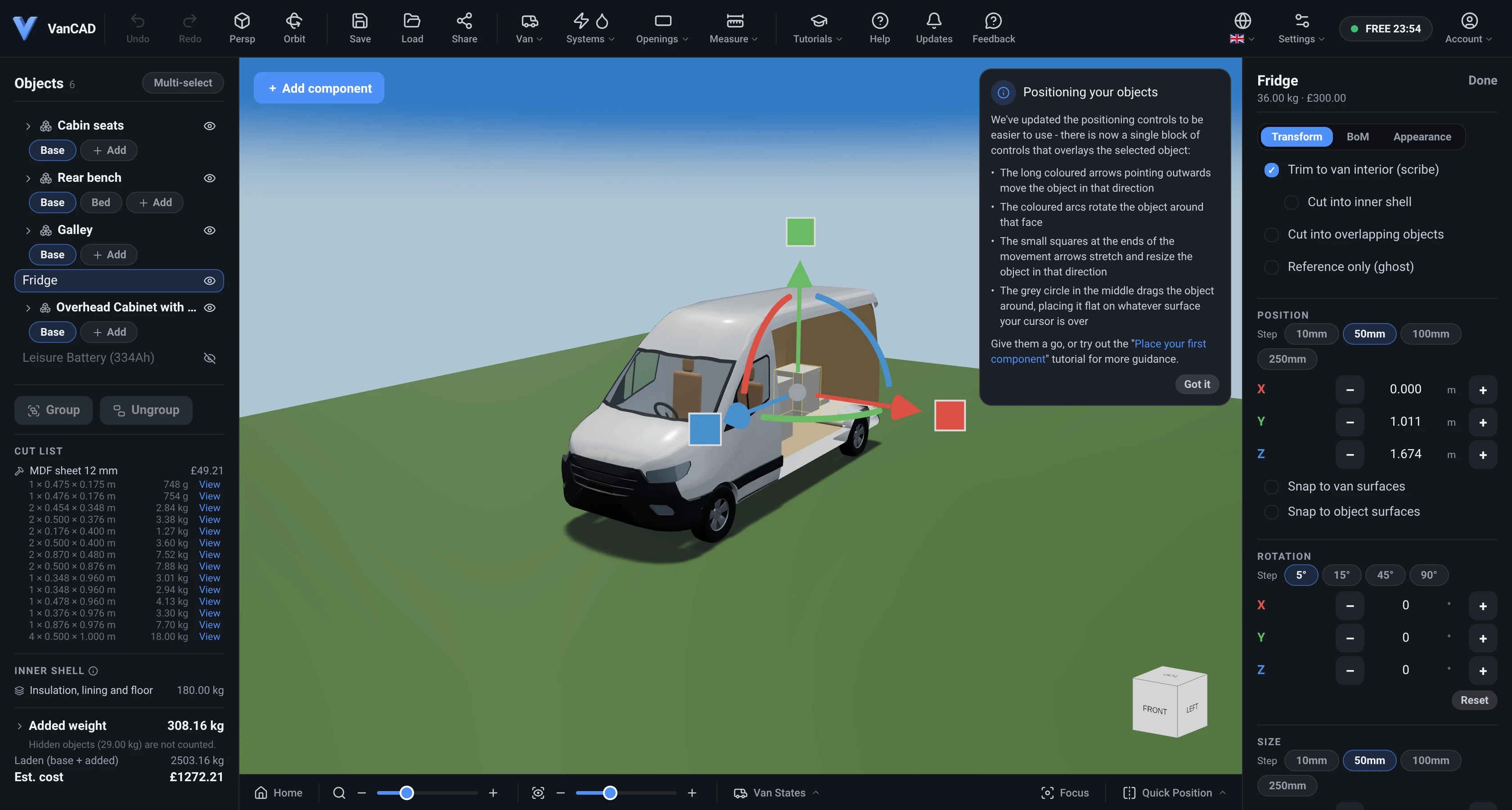
Section titled “The layout”On a desktop-sized window the editor is one screen with no pages to navigate between:
- The toolbar, across the top. Undo and redo, the view controls, the menus for the van, wiring, water, openings, visuals, saving and your account, and the session timer. See The toolbar.
- The Object List, docked on the left. Every object in your design as a row, with groups you can expand. See The Object List.
- The 3D view, filling the middle. Your van and everything in it. Click an object to select it, drag its handles to move it, and move the camera around it. See The 3D view.
- The Inspector, docked on the right, appearing when something is selected. The selected object’s position, size and rotation, its weight and cost, and its appearance. See Selecting, moving and resizing.
- Add component, at the top-left corner of the 3D view. Opens the catalogue drawer over the Object List. See Objects and the catalogue.
- The navigation cube, at the bottom-right corner of the 3D view. Snap the camera to a standard view. See Camera and navigation.
- The view strip, along the bottom of the 3D view. Starts with Home, which puts the camera back where it started, then the Zoom and Field of view sliders (see Camera and navigation), then the Van States button - a menu of the saved layouts of the whole van (see Van states).
Two more panels take the right-hand dock when you open them, in place of the Inspector: Edit Van Dimensions and Shell finish, both from the Van menu, and the Openings draw menu while you are drawing an opening.
When the window is narrow
Section titled “When the window is narrow”The same app on a phone, a tablet, or a small browser window mostly rearranges: the 3D view goes full width, the two side docks become bottom sheets reached from a tab bar (Catalogue, Objects, Transform, Inspect), and the toolbar keeps the controls that fit and moves the rest into its More menu. Transform is its own tab so that moving, rotating and resizing a selected object is one tap away; Inspect holds everything else about it, behind a Properties / BoM / Appearance switcher. Some things are desktop-only and are simply absent: the van-state switcher, the interactive help overlay, the guided tutorials, and building your own custom objects - all of which teach or assume the docked layout, or need more room than a phone has.
VanCAD is meant to be used on a desktop or laptop browser: the docked layout above is where the whole feature set is, and a narrow window is better for looking at a design than for making one.
The three things that explain themselves
Section titled “The three things that explain themselves”Before reading further it is worth knowing that the app carries its own explanations: the guided tutorials, the help overlay that annotates whatever is on screen, and the Updates list of what has changed. All three are on the toolbar, and all three are covered in Tutorials and help.
Related
Section titled “Related”- Guides: in-depth walkthroughs.
- Tutorial: Quick User Interface Guide, in the app under Tutorials - the same tour of this screen, in the app, pointing at the real thing.