
The Inspector
The Inspector is where a selected object is edited. Select something and it fills in; select nothing and it goes back to an empty state.
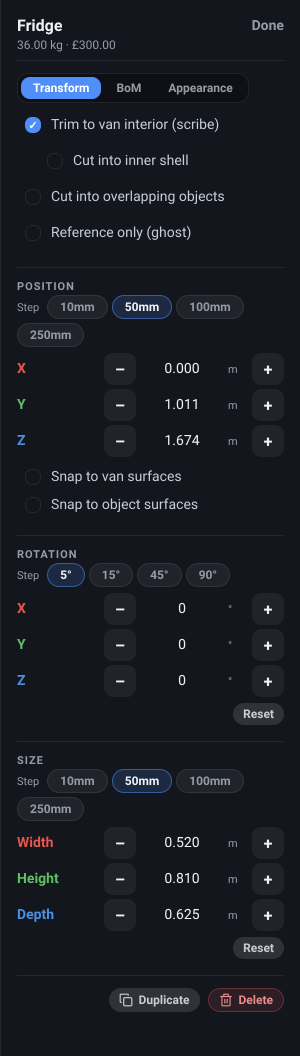
The panel
Section titled “The panel”What it is. The panel on the right of the editor, showing whatever is currently selected. Its header carries the object’s name and, beneath it, that object’s weight and cost.
What it does. It is the exact-numbers half of editing. The handles in the 3D view are for approximate work; most of the figures the Inspector shows can be typed, and a typed value is used as given. The exceptions are all totals or figures an object does not really have: a group’s mass and cost are the sum of its members, so they are shown but not editable, and a group is scaled in steps rather than typed, because it has no dimensions of its own. In the read-only demo explorer every figure is a readout.
Options and limits. With nothing selected it shows Nothing selected. With more than one object selected it collapses to a count and a single Group action - to edit dimensions you select one object at a time. Cable and pipe runs and openings get their own reduced version of the panel, covered in Wiring and plumbing and Openings.
On a narrow window (below 760 px) the docked panel is replaced by two tabs at the bottom of the screen. Transform is the move, rotate and resize controls on their own, so repositioning a selected object is one tap; Inspect is everything else the panel has to say about it. Selecting an object does not pop either open - tap the one you want, so the scene stays unobstructed while you work. Both are greyed until you have selected something a panel can describe.
If the object you have selected belongs to a group with an active state, the Inspector shows an Editing in state “…” banner. That is a warning worth reading: your edits are being recorded into that state rather than into the object itself. See Group states.
What it affects. Everything about the selected object. Nothing about the view.
What it is. The segmented switch under the header: Transform, BoM and Appearance.
What it does. Splits the panel into three so it stays short: Transform is position, rotation and size; BoM is this object’s weight, cost and where to buy it; Appearance is colour and texture.
Options and limits. Not every page is always there. A group has no Appearance page - colour and texture are per-object, so you set them on the members. In the read-only demo explorer there is no Transform page at all, because nothing there can be restructured. When only one page remains, the switcher is hidden rather than shown with a single option.
On a narrow window the same pages are dealt across the two bottom tabs instead: Transform is the Transform tab, and the Inspect tab’s own switcher reads Properties, BoM and Appearance. Properties is the object’s build settings - trimming, cutting into the shell or into its neighbours, and marking it reference-only - which on the docked panel sit inline on the Transform page.
The page you pick is remembered while you move between objects, so working through several fridges on the Appearance page does not mean re-selecting the page each time.
What it affects. Which controls are visible. Switching pages changes nothing in the design.
What it is. The Done link at the top right of the panel.
What it does. Clears the selection, which empties the Inspector and removes the handles from the 3D view.
Options and limits. It is not a cancel or an undo - everything you changed stays changed. It is also not the only way out: clicking empty space in the 3D view clears the selection too.
What it affects. The selection only.
Duplicate
Section titled “Duplicate”What it is. A footer action, available from any page.
What it does. Makes a copy of the selected object and selects the copy.
Options and limits. The copy lands at exactly the same place as the original, so at first you
see nothing happen - move it and the original appears underneath. It takes the next free numbered
name (Bed becomes Bed 2, then Bed 3) and sits directly after the original in the
Object List.
- Duplicating a group copies every member, and the copy’s states are its own - re-posing one group does not move the other.
- Duplicating a custom object copies the placement but not the definition: both copies still point at the same saved object, so editing it in the custom-object editor changes both.
- An opening cannot be duplicated. Its aperture is tied to one rectangle of the shell, so a copy in the same place would overlap itself - draw a second one instead.
On the web there are keyboard shortcuts for this: Ctrl+C / Cmd+C copies the selected object and Ctrl+V / Cmd+V pastes a copy. The clipboard holds the object, not the selection, so you can copy once and paste repeatedly, even after clicking away.
What it affects. The copy is a full object: its weight and cost are added to your bill of materials.
Delete
Section titled “Delete”What it is. The red footer action.
What it does. Removes the selected object from the design.
Options and limits. Deleting a group deletes everything inside it, not just the group. There is no confirmation prompt, because Undo brings it back exactly as it was. On the web, the Delete and Backspace keys do the same thing to the selected object - except while you are typing in a field, where they edit the text as usual.
Both footer actions are hidden entirely in the demo explorer, which is a viewer.
What it affects. The object is gone from the design, from the Object List, and from your bill of materials totals.
Related
Section titled “Related”- Move, rotate and resize - what the Transform page holds.
- Bill of materials and weight - the BoM page’s per-object figures.
- Appearance - the Appearance page.
- Tutorial: Place your first component, in the app under Tutorials.