
Editing a run
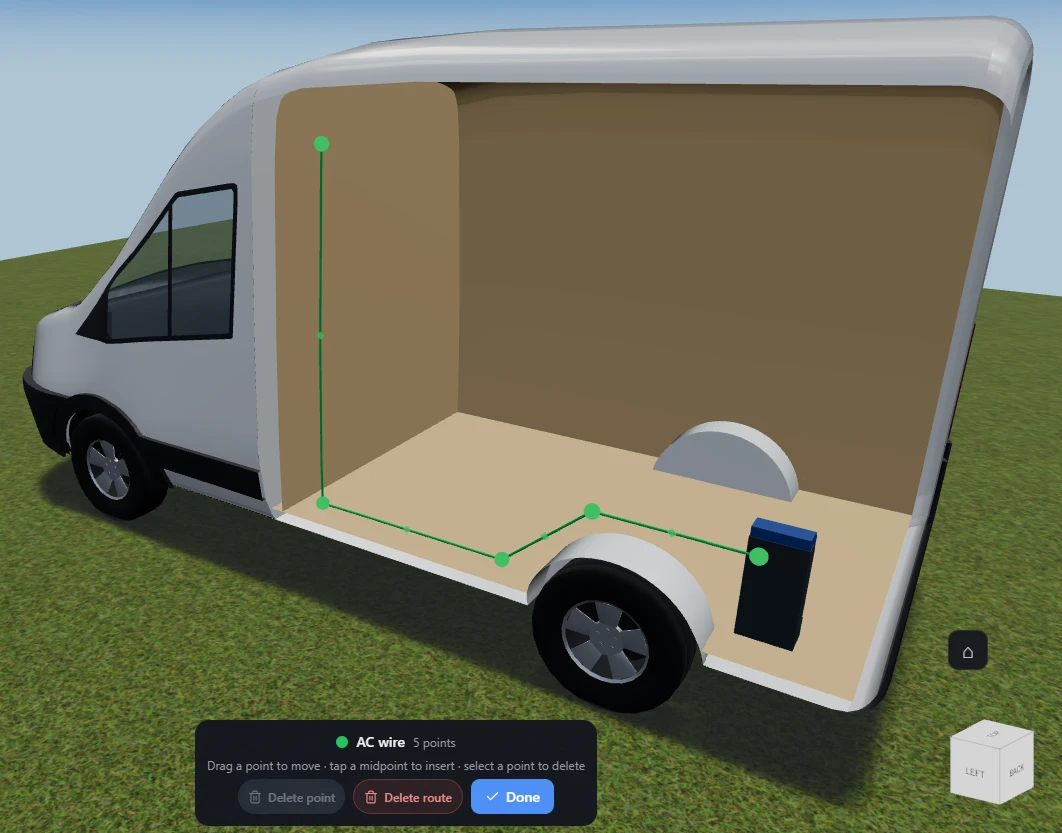
Select a finished run - click it in the 3D view, or its row in the Object List - and two things appear: its path handles in the scene, and an editing banner at the bottom of the screen carrying the point count, a reminder of the gestures, and the three actions below.
The path is edited in the scene, not in a panel. There are three gestures, and each one is a single undoable step:
- Move - drag a point. It re-lands on the cavity as you drag, so a moved point stays in the shell gap rather than floating into the living space, and the run re-draws live behind it. A move that would drop a point exactly on top of one of its neighbours is refused and the point springs back, since that would leave a zero-length segment.
- Insert - tap the small diamond at the middle of a segment. It sits on the shell where the run actually goes, not on the straight line between the two points, so the new point appears under your pointer rather than jumping inside the van. It is selected immediately, ready to drag.
- Delete - click a point to select it (it highlights), then press Delete or Backspace, or use the button below.
The handles are drawn over the top of the van, so you can reach one through a wall without hiding anything first, and they are deliberately larger than the run itself.
A selected run always draws, even if its system’s view filter is set to Hide - so a run you have hidden can still be found from the Object List and worked on.
Editing a run’s path is a building feature: in the demo explorer, selecting a run shows its figures without any handles.
Delete point
Section titled “Delete point”What it is. The first button on the editing banner.
What it does. Removes the point you have selected, joining the run straight across the gap.
Options and limits. It stays disabled until you have actually clicked a point - selecting the run is not enough - and it is disabled on a two-point run, because a run has to keep at least two points. Delete one of the middle points first, or delete the whole run.
There is one more case where it stays grey, rare but confusing when you meet it: the deletion is also refused when what would be left cannot be drawn. On an out-and-back run that returns to where it started - three points, but the first and last in the same place - deleting the middle one would leave two points on top of each other and nothing visible, so the button does not offer it. Move one of the ends first, or delete the whole run.
The Delete and Backspace keys do the same thing, and only that: with a run selected they never delete the run itself, whatever else is on screen. They do nothing at all while you are typing in a field, or when no point is selected.
What it affects. The run’s shape, and therefore its length - so its weight and cost in the bill of materials change with it.
Delete route
Section titled “Delete route”What it is. The red button in the middle of the banner.
What it does. Removes the whole run from your design.
Options and limits. No confirmation, but it is one undoable step, so Undo brings it back complete. The same action is on the Delete button in the run’s properties panel.
What it affects. Your design. The run’s line disappears from the bill of materials, and the weight total drops by its weight.
What it is. The last button on the banner.
What it does. Deselects the run, which puts the handles away and closes the banner.
Options and limits. It changes nothing - every edit you made is already committed. Clicking empty space in the 3D view, or the Done at the top of the properties panel, does the same thing.
What it affects. Nothing. Selection is not part of your design.
Related
Section titled “Related”- Run properties - the panel on the right while a run is selected: system, type, spec, colour, weight and cost.
- Drawing a run - placing the points in the first place.