
Object properties
The save card - what the toolbar’s Save opens - holds everything about the object as a catalogue component, rather than about the shapes it is made of: how its card is framed, its name, where it files, what it weighs and what it costs. These are the figures your bill of materials will use every time you place the thing.
From the top, the card shows a line saying what the picture is for, the catalogue picture with its Spin row, the Name field, then the Bill of materials block. The fields scroll if they do not all fit, and the two buttons stay put at the foot: Save (or Save changes) commits the object, and Back to editing closes the card with everything you typed kept, ready for the next time you open it.
None of these fields are on the editor’s undo stack. Undo steps back through the pieces only, so it will not restore a name or a weight you have typed over. Retype it, or press Cancel and start again.
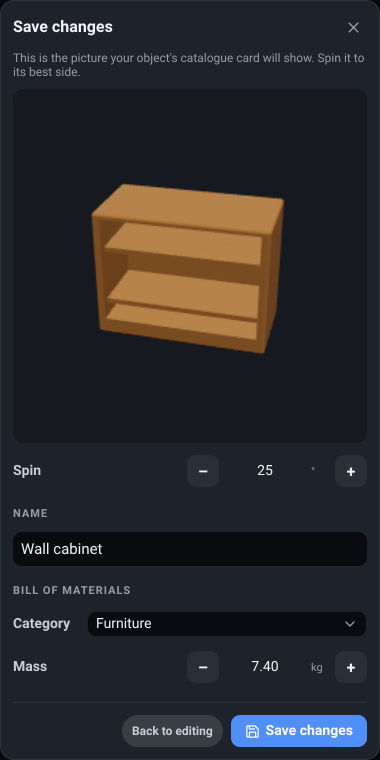
What it is. The text field under Name, below the picture. A new object arrives pre-filled with Custom object; if the field is ever empty when the card opens, it is ready for typing.
What it does. Names the component. It is the label on its catalogue card, and the name a copy you place takes in the Object List.
Options and limits. The card’s Save is greyed out while the field is empty, and the line under it says why, so every object gets a name. It also stays off for an object with more than one model, which a single save cannot hold, and the line says that instead. Pressing Enter in the field saves, once it can. Any text is allowed and names need not be unique - two objects called “Shelf” are two different objects, told apart by their cards.
A placed copy takes a snapshot of the name, so the two can drift apart in either direction: renaming a copy in the Object List does not rename the object, and renaming the object here does not go back and rename copies you placed earlier. New copies get the new name.
What it affects. The catalogue card, and the name of copies placed from then on.
Category
Section titled “Category”What it is. The dropdown in the Bill of materials block, showing Select category until you choose one.
What it does. Files the object under one of the catalogue’s categories, so it turns up under that filter chip alongside similar components.
Options and limits. The list offers every category the built-in catalogue uses, plus Add new category…, which opens a small field for one of your own.
A custom object always appears under the catalogue’s Custom chip, whatever you choose here - choosing a category makes it appear under that chip as well. Leaving it blank is therefore perfectly workable; it just means the object is only ever found under Custom.
What it affects. Which catalogue filters show the object. Nothing about the design.
Weight
Section titled “Weight”What it is. The - value + row labelled Mass, in kilograms or pounds depending on your
unit setting.
What it does. Sets what one of these objects adds to your van’s Added weight total once placed.
Options and limits. It starts at zero, and it stays zero unless you set it - the app cannot guess what your shelf unit is made of. The steppers move 0.1 at a time and typing takes any figure; it cannot go below zero.
The figure belongs to the object, so changing it here changes it for every copy of it in the van. To correct a single placed copy instead, override it on that item’s bill-of-materials page, which splits that one onto its own line.
What it affects. Your added-weight total, once the object is placed.
What it is. The row below Mass, in your chosen currency.
What it does. Sets what one of these objects adds to your running cost total.
Options and limits. Zero by default, like the weight. The steppers move a whole unit at a time and it cannot go negative. Same rule as the weight about copies: this is the object’s price, and a single placed copy can be overridden on its own bill-of-materials page.
What it affects. Your running cost total, once the object is placed.
Thumbnail angle
Section titled “Thumbnail angle”What it is. The - value + row labelled Spin, under the picture at the top of the card, in
degrees.
What it does. Turns the object about its vertical axis for the picture on its catalogue card, so a wardrobe is not photographed from the back.
Options and limits. The steppers move 15 degrees at a time and the value wraps, so stepping past 359 comes back to 0; typing takes any angle. It is display only - the object itself is not rotated, and a copy you place is unaffected.
The picture above the Spin row is the catalogue card itself - the same render, from the same angle, that the catalogue will show - drawn again at each step, so what you see there is what you get.
What it affects. The catalogue card only.
Related
Section titled “Related”- The editor toolbar - Result, which previews the card angle on the fused object.
- Bill of materials and weight - where the weight and cost end up.
- The catalogue - the card these properties describe.