
Drawing a run
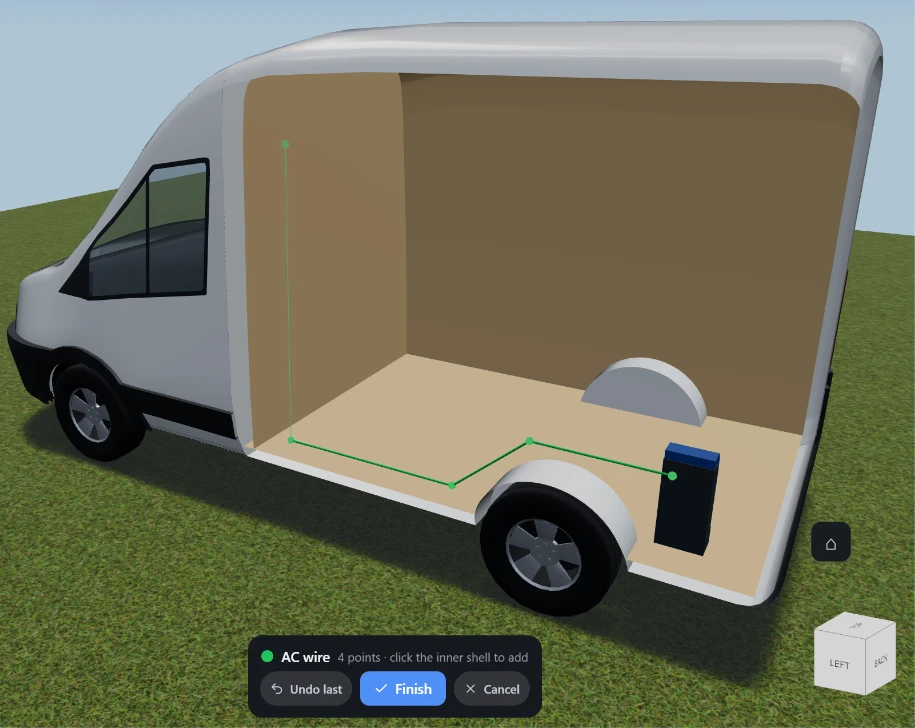
Pressing one of the four Add buttons in the Systems menu puts the app into drawing mode. A banner appears at the bottom of the screen headed by the run’s colour swatch and its name, with the number of points you have placed so far and the three actions below.
You click points, not lines. Each click drops one point; the run is the chain between them. You do not have to click accurately on a wall - the click is projected onto the cavity, the gap between the van’s outer bodywork and its inner ply lining, and it lands on the nearest cavity point facing you. Clicking past the van entirely still lands on the nearest point of the cavity, so pointing at empty space is not a way to miss.
Between clicks a straight rubber band follows the pointer from your last point, and the run drawn behind it is already the finished shape: it hugs the shell around the shoulder and up the wall rather than cutting a straight line through the living space. The two flat ends of the cargo area - the bulkhead at the front and the rear wall - are cavity surfaces too, so a run can cross them.
Two things worth knowing while you are drawing:
- Dragging is not clicking. A press that travels more than a few pixels is treated as an orbit, so you can turn the van around mid-run to reach the far side without dropping a stray point.
- Placed objects are not in the way. While drawing, a click on furniture, a custom object or a window does not select it - the click passes through to the cavity behind.
- A run you have already drawn is the one thing that is. A click landing on an existing run’s tube places no point and selects nothing; it is simply lost. Runs sit in the cavity, which is exactly where you are pointing, so if one is in your way either aim to the side of it or set that system’s view filter to Hide while you draw - a hidden run is not drawn and cannot swallow the click.
Undo last point
Section titled “Undo last point”What it is. The first button on the drawing banner.
What it does. Removes the last point you placed, leaving the rest of the run intact. Press it repeatedly to walk back through the points.
Options and limits. It is disabled until you have placed at least one point. It only steps back through the run you are drawing.
The toolbar’s own Undo button is not part of this: while you are drawing a run it still acts on your design, so pressing it there undoes whatever you last did before entering drawing mode. Use Undo last for the run. (The openings draw mode behaves the other way round, which is worth remembering if you use both.)
What it affects. The unfinished run only. Nothing enters your design until you press Finish.
Finish
Section titled “Finish”What it is. The middle button on the banner. Enter does the same thing.
What it does. Turns the points into a finished run, adds it to your design, leaves drawing mode and selects the new run - so its properties panel opens straight away and the editing banner replaces this one.
Options and limits. It needs at least two points and is disabled until then. Two clicks in almost the same spot count as one: points are picked from a fixed grid of cavity positions, so a repeat click that resolves to the point you just placed is ignored rather than stacking up.
The run is named after its type - AC wire, DC wire, Cold pipe or Hot pipe - and double-clicking its row in the Object List renames it. It goes in at that system’s default cable or pipe, which you change afterwards in Run properties.
Finishing is one undoable step, so the toolbar’s Undo removes the whole run.
What it affects. Your design. The run’s weight and cost appear in the bill of materials immediately, worked out from its length.
Cancel
Section titled “Cancel”What it is. The last button on the banner. Escape does the same thing.
What it does. Leaves drawing mode and throws the points away.
Options and limits. There is no confirmation and no undo for it - the unfinished run was never part of your design, so there is nothing on the undo stack to bring back.
Two other things cancel a run you are drawing, for the same reason: pressing another Add button starts a fresh run in place of this one, and starting an opening switches to that tool. Only one drawing mode runs at a time.
What it affects. Nothing. Your design is untouched.
Related
Section titled “Related”- Editing a run - moving, adding and removing points after the run exists.
- Run properties - system, type, cable or pipe spec, colour, weight and cost.
- The Systems menu - where drawing starts.