
The measurements list
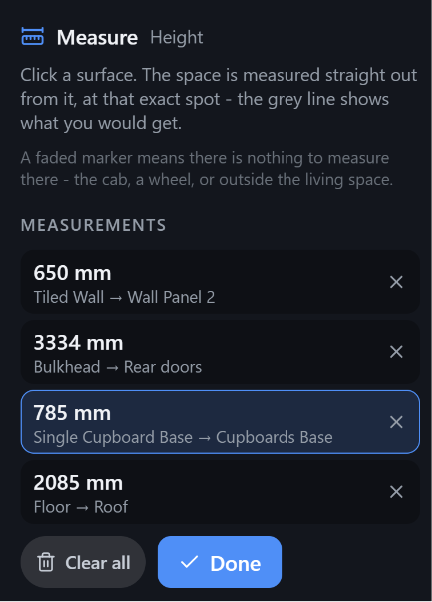
Everything you measure stays on screen, as a line with its number at the midpoint, and is listed in the panel beside the 3D view. The lines and their labels are held at a constant size on screen, so zooming out does not turn them into specks or zooming in into billboards.
Each row shows the distance, and under it either what stopped the span at each end
(Fridge → Wall) or, for a point to point, its X, Y and Z components. The line in the 3D view is
labelled with the distance only - the names are here, where there is room for them, rather than on
a label that would sit across the very ends of a short measurement.
The whole list is written in one unit, whatever the sizes involved: millimetres if you are working in metric, inches to one decimal place if you are working in imperial. That is deliberate, and it is the one place the app does not promote a big number to metres or feet - in a list, two similar measurements have to look similar, and every difference down to a few millimetres has to be visible. Switching between metric and imperial in Settings rewrites the whole list at once.
A measurement
Section titled “A measurement”What it is. One row of the list, and a control: click it.
What it does. Highlights that measurement in the 3D view - its line, both end markers and its number change colour together, so you can tell which of several lines this row is describing. Click the row again to turn the highlight off; selecting another row moves the highlight to it.
That pairing is what the row is for. The line carries the number, the row carries the names, and the highlight joins the two - which matters most on a short measurement, where the line is smaller than any label naming both of its ends would be.
Remove
Section titled “Remove”What it is. The small ✕ at the right-hand end of a row.
What it does. Removes that one measurement from the list, and its line and label from the 3D view. Undo puts it back: while the tool is open, Undo and Redo step this list rather than your design.
Clear all
Section titled “Clear all”What it is. A button under the list.
What it does. Removes every measurement at once, without leaving the tool. Greyed out when there is nothing to clear. It is one Undo away if you did not mean it.
What it is. The button that leaves measure mode. Escape does the same, once there is no half-finished measurement to drop first.
What it does. Leaves the tool and returns the click to selecting objects. Your measurements are cleared with it, and that is the point rather than an oversight: a measurement is a question about your design, not part of it. Nothing about it is saved, and nothing about it survives a reload either. Leaving is not on the tool’s undo stack, which goes with it - so if you are still working with a figure, keep the tool open.
If you want to keep a figure, write it down - or keep the tool open while you work, which is what the list is for.
Related
Section titled “Related”- Taking a measurement - the four kinds, and what blocks a span.
- Units and sizes - the metric / imperial switch this list follows.