
Per-object figures
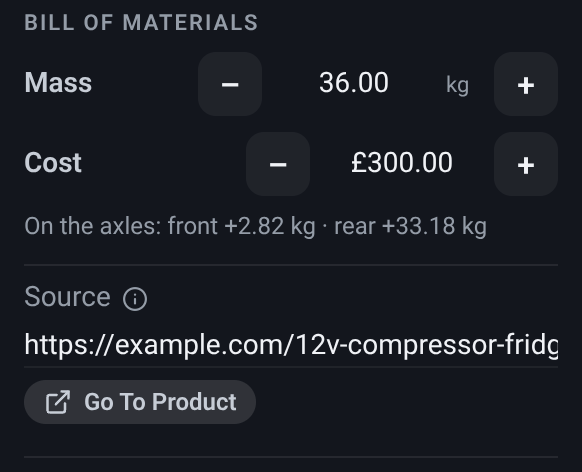
Select an object and open the Inspector’s Bill of materials page and you get that object’s three practical fields: what it weighs, what it costs, and where you plan to buy it. The first two feed the running totals at the foot of the Object List.
Weight
Section titled “Weight”What it is. The selected object’s weight, as a number you can edit, in kilograms or pounds depending on your unit setting. The Inspector labels the row Mass.
What it does. Sets what this object contributes to your Added weight total. It starts as the catalogue’s estimate for a component of that kind; type over it with the figure from the product you are actually buying and the totals update immediately.
Options and limits. The figure is per object, not per catalogue item: correcting one fridge does not change another fridge you placed earlier, and a corrected object gets its own line in the bill of materials rather than being counted with the others. Weight cannot go below zero. A group shows the total of its members and cannot be edited as one - select the member you want to correct. There is no reset button on this field: undo steps back through your edits, and a freshly placed copy starts from the catalogue figure again.
What it affects. The Added weight and Laden totals. Added weight is what you have put in the van; laden is that plus the van’s own empty weight, which is set separately in the van’s dimensions. A hidden object’s weight is left out of both until it is shown again (the totals say how much is out); its cost still counts.
On the axles
Section titled “On the axles”Under the Mass and Cost rows, one line says what this object puts on each axle - front +38.00 kg · rear +62.00 kg - worked out from where it sits between the van’s axles, as Per-axle weight explains. It is a readout, not a field: type a new mass and the line moves with it. A group’s line is the sum of its members, each counted where it actually is; a wiring or plumbing run and an opening have the line too. A hidden object keeps its figures and says it is not counted while hidden; a group with a hidden member says how much of it is out of the split. An object behind the rear axle can show a minus on the front - it is lifting that axle, not loading it - and one ahead of the front axle a minus on the rear. An object that is not in the bill of materials at all (a reference-only ghost) says so instead of showing a split.
What it is. The selected object’s cost, in the currency you have chosen for the bill of materials.
What it does. Sets what this object contributes to the Est. cost total, the same way weight does. It starts from the catalogue’s estimate; type over it with the real price.
Options and limits. Per object, not per catalogue item; cannot go below zero; read-only on a group, which shows its members’ total. Changing the display currency does not convert the number
- it swaps the symbol only, so enter prices in one currency and read them in that one.
What it affects. The Est. cost total.
Source
Section titled “Source”What it is. A free-text note under the weight and cost, for where you plan to get the real component: a shop name, a part number, a URL.
What it does. Remembers the decision you made when you looked the component up, so the design doubles as a shopping list. Anything is accepted - it is a note, not a validated field.
Options and limits. One note per object, saved with your design. Nothing is fetched from a link you paste: VanCAD does not check prices, stock, or whether the page still exists.
What it affects. Nothing but itself. It carries no weight or cost of its own.
Go to product
Section titled “Go to product”What it is. A button beneath the Source field.
What it does. Opens the source in a new tab, when the source is a web address.
Options and limits. It is greyed out unless the note is a proper http or https address, so a
shop name or a part number simply leaves it disabled. Only web addresses are ever followed.
What it affects. Nothing in your design.
Related
Section titled “Related”- Currency - which currency the cost total reads in.
- The Object List - where the running totals sit.
- Metric and imperial - which units the weights read in.