
Adding pieces
A custom object is a stack of pieces. There are three ways to add one, all in the drawer that + Add primitive opens: spawn a basic solid, bring in a catalogue component, or bring in another object from this design. A fourth thing you can add is not a piece at all - a reference ghost, which is a see-through guide you position work against and which never becomes part of the object.
A new object starts empty - the Pieces list reads No pieces yet - so the first thing you do in here is add a piece.
Whatever you add lands beside what is already there rather than on top of it: its centre is put 400 mm past the far edge of everything already in the scene, along X (the red axis). A default-sized solid therefore lands with a comfortable gap; something much larger lands closer in, but still to the side. It arrives selected and joins the stack as Add, so you can move it into place immediately.
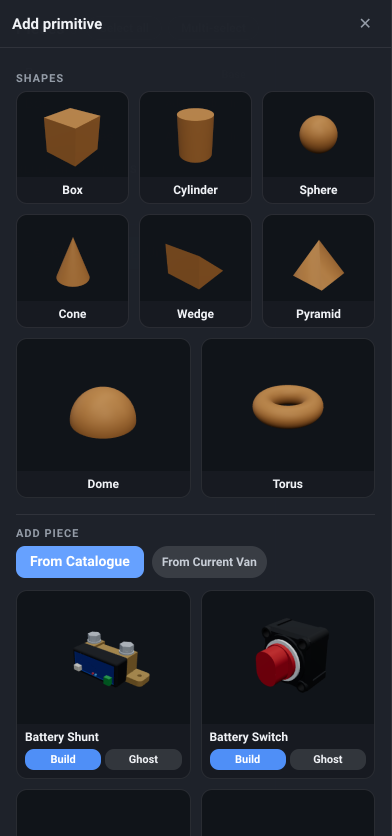
Add primitive
Section titled “Add primitive”What it is. The + Add primitive button at the top left of the 3D view - the editor’s counterpart of the van editor’s + Add component.
What it does. Opens the Add primitive drawer over the Pieces list: the basic shapes first, under Shapes, then From Catalogue and From Current Van under Add piece for ready-made parts. The drawer stays open while you add, so you can drop in several pieces in a row; its ✕ closes it.
Options and limits. The button is hidden while the drawer is open, and while Measure is on. On a narrow window the drawer is the Add tab along the bottom instead.
What it affects. Nothing by itself - it only opens the drawer.
Add a shape
Section titled “Add a shape”What it is. The grid of thumbnail cards under Shapes, at the top of the drawer.
What it does. Clicking a card drops that solid into your object.
Options and limits. There are eight: Box, Cylinder, Sphere, Cone, Wedge, Pyramid, Dome (a half sphere) and Torus (a ring). Each arrives at a sensible default size - between 120 and 500 mm on a side - and every one of them can then be resized on all three axes independently, so a cylinder can become an oval column and a sphere an egg.
Only some of them can have their edges rounded or chamfered: box, cylinder, cone and dome. See Shaping a piece.
What it affects. Adds one piece. Undoable.
From catalogue
Section titled “From catalogue”What it is. The first of the two buttons under Add piece. It stays lit while its cards are showing, and pressing it again folds them away.
What it does. Lists the built-in catalogue as cards, under the buttons, so you can use a real component as a building block - subtract a fridge to leave the recess it will sit in, or add a worktop to a frame you have built.
Options and limits. Every component you can place in the van is offered, and it comes in with its real shape rather than as a stand-in box. Because every built-in component is itself built from solids, a Build always arrives as a group named after the component - unfold it in the Pieces list and you can reach the individual solids it is made of. A pre-made kit, a bench with a drawer say, arrives the same way, as a group of its parts. That grouping is for building with: it is not kept when the object is saved, as the Pieces list explains.
What it affects. Nothing until you pick a card.
From this design
Section titled “From this design”What it is. The second button under Add piece, labelled From Current Van.
What it does. Lists the other custom objects in the design you are working on, so an object you have already built can be a component of a bigger one.
Options and limits. It is greyed out when there are none, and it never offers the object you are currently editing. What it brings in is a copy taken at that moment - not a link - so improving the source object afterwards leaves this one as it was.
What it affects. Nothing until you pick a card.
What it is. The ✕ at the top right of the Add primitive drawer.
What it does. Closes the drawer. + Add primitive opens it again.
Options and limits. The drawer slides over the Pieces list rather than pushing the 3D view aside, so opening and closing it never resizes the canvas or moves your camera. While it is open the Inspector is still beside the view on the right, so a piece you have just added can be moved into place without closing it.
What it affects. Nothing.
Add a piece
Section titled “Add a piece”What it is. The cards From Catalogue or From Current Van shows: a thumbnail, the component’s name, and two buttons.
What it does. Build brings the component into your object as real geometry you can combine, move and turn. Ghost adds it as a see-through reference instead - visible, positionable, and not part of the finished object.
Options and limits. Build and Ghost land the thing in exactly the same place, so you can ghost something to try it, then build it once you are happy. A Build arrives as a group named after the source, whichever button it came from; a Ghost of a kit arrives as one ghost per part, and a ghost of anything else as a single ghost.
What it affects. Adds a piece or a ghost. Undoable.
Reference ghost
Section titled “Reference ghost”What it is. A row under Reference ghosts, below the pieces in the Pieces list, marked with a dashed square. The section only appears once you have at least one.
What it does. A ghost is a guide. It is drawn translucent in the scene, it can be selected, moved and rotated like anything else, and it is not part of the object you are building - it contributes no shape, no weight and no cost, and it is not drawn when the object is placed in the van.
Options and limits. Ghosts stay visible while Result is on, deliberately, so you can check the fused shape against the thing you were lining it up with - and they stay live with it, so a ghost can still be selected and moved while the fused object is on screen. They cannot be resized, they cannot be grouped, and they have no combine mode - there is nothing for them to combine with.
They are saved with the object, so re-opening it for editing brings your guides back exactly where you left them.
To remove a ghost, select it and press Delete at the foot of the Inspector, or the Delete key.
What it affects. What you see while building. Nothing in the finished object.
Related
Section titled “Related”- Shaping a piece - moving and sizing what you have added.
- The Pieces list - the stack, and how each piece combines.
- The catalogue - the components From Catalogue offers.