
Run properties
Selecting a run fills the Inspector on the right with everything about the run except its shape, which is edited in the scene. The panel opens with four readouts under Routed run:
- Length - the run’s real routed length, following the cavity around the shoulder and up the wall, not the straight line between its points. It is worked out against the van as it is now, so resizing the van changes a run’s length - and, since a run is billed by the metre, its weight and cost with it - without touching any of its points. The exception is a Total weight or cost override, which is one fixed figure and does not move with the length.
- Mass and Cost - what this run contributes, in your unit and currency settings. These are the same figures the bill of materials bills, so the two can never disagree.
- Points - how many points the run has.
In the demo explorer the panel shows those readouts plus the run’s system, type and spec, and nothing is editable.
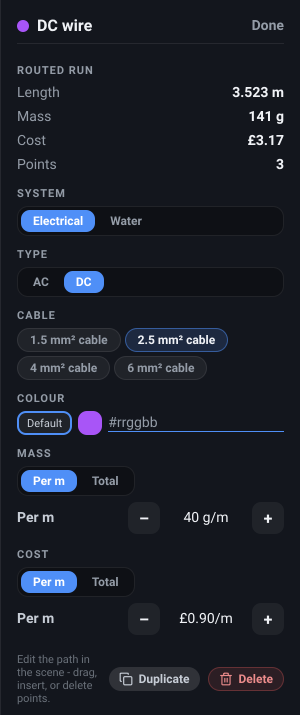
System
Section titled “System”What it is. A two-way switch, Electrical or Water.
What it does. Moves the run between the two systems.
Options and limits. Switching brings the type and spec with it, because neither is valid on the other side: an electrical run switched to Water becomes a Cold pipe on the default 15 mm pipe, and a water run switched to Electrical becomes an AC wire on the default 2.5 mm² cable. The points are untouched.
The run’s name is not changed - a run drawn as AC wire and switched to Water is still called “AC wire” until you rename it in the Object List. The system also decides which view filter the run answers to, so a run switched to Water can vanish if your water view is set to Hide.
What it affects. The run’s type, spec, colour, weight and cost, and which bill-of-materials line it lands on.
What it is. A two-way switch showing the two types valid for the current system: AC / DC for electrical, Cold / Hot for water.
What it does. Sets what the run carries, and with it the standard colour it is drawn in - AC green, DC purple, cold blue, hot red.
Options and limits. The type is independent of the cable or pipe spec: switching AC to DC leaves the gauge alone. If you have set a custom colour below, the type change does not show - your colour still wins.
What it affects. The run’s colour, and which bill-of-materials line it groups onto - AC and DC runs of the same gauge are separate lines, told apart by the colour of the dot beside them, since the row itself is named after the cable rather than the type. Not the run’s weight or cost - those come from the spec.
Cable / pipe spec
Section titled “Cable / pipe spec”What it is. A row of chips, headed Cable on an electrical run and Pipe on a water one. Electrical offers 1.5 mm², 2.5 mm², 4 mm² and 6 mm² cable; water offers 12 mm, 15 mm and 22 mm pipe.
What it does. Sets the run’s weight and cost per metre, which is what turns its length into figures in your bill of materials.
Options and limits. The spec also sets how thick the run is drawn, but that is not a scale model: cables are drawn deliberately thicker than life so a run reads clearly and is easy to grab, while pipes are drawn at their true outside diameter. The drawn thickness never affects weight or cost.
The figures behind each spec are sensible camper-build approximations rather than a particular manufacturer’s product. If you know what you are buying, override the weight and cost below.
What it affects. The run’s weight and cost, and which bill-of-materials line it groups onto - runs sharing a system, type and spec are billed as one line, named after the spec, showing their combined length and cost.
Default colour
Section titled “Default colour”What it is. A small Default button at the start of the Colour row, outlined while it is the active choice.
What it does. Clears any custom colour, so the run goes back to its type’s standard colour and follows the type from then on.
Options and limits. Nothing to set - it is either the current state or one press away.
What it affects. How the run is drawn.
Colour
Section titled “Colour”What it is. A #rrggbb text field beside the swatch.
What it does. Gives this one run a colour of its own - useful for telling two circuits of the same type apart.
Options and limits. Type a hex value and press Enter, or click away; both #rrggbb and the
three-digit #rgb shorthand are accepted, and an entry that is not a valid hex colour is dropped and
the field goes back to what it was. There is no colour picker.
The swatch between Default and the field previews what the run is actually drawn in, so it
tracks your custom colour once you set one.
The custom colour shows on the run in the 3D view and on the swatch beside the run’s name at the top of this panel. The dot on its Object List row and on its bill-of-materials line stays the type’s standard colour, so those two lists always read by system rather than by decoration.
Colour is stored with the design.
What it affects. How the run is drawn. Nothing measurable.
Per metre or total
Section titled “Per metre or total”What it is. A Per m / Total switch above both the Mass and the Cost field. Each has its own.
What it does. Chooses how you want to enter that override: as a rate that scales with the run’s length, like the catalogue spec, or as one fixed figure for the whole run.
Options and limits. Flicking the switch is safe: the figure shown converts through the run’s length so it stays equivalent, ready for you to change. Nothing is stored until you actually edit the value, so switching back and forth changes nothing.
The two modes behave differently afterwards. A per metre override keeps tracking the run’s length, so lengthening the run or resizing the van moves the figure. A total override is fixed: it stays the same however the run changes.
What it affects. How your typed figure is interpreted.
Weight
Section titled “Weight”What it is. An editable - value + row under Mass, labelled Per m or Total to match
the switch above it.
What it does. Replaces the spec’s weight for this run with your own figure - the real weight of the cable you are buying.
Options and limits. This field works in grams whether you are in metric or imperial: g/m
in Per m mode, g in Total. The Mass readout at the top of the panel follows your unit setting as
usual. The steppers move it 5 g/m at a time, or 25 g on a total, and you can type any figure.
Negative values are not accepted.
An override splits this run onto its own line in the bill of materials rather than being counted with other runs of the same spec, so the change is always attributable. Weight and cost are overridden independently - you can correct one and leave the other on the catalogue figure.
What it affects. The run’s weight, in the panel, on its bill-of-materials line, and in your added-weight total.
What it is. The same editable row under Cost.
What it does. Replaces the spec’s price for this run.
Options and limits. It edits in your chosen currency and steps in units of 0.10. Everything else matches Weight above, including the per-metre-or-total choice and the separate bill-of-materials line.
What it affects. The run’s cost, and your running cost total.
What it is. A small Reset link beside the Mass or Cost switch.
What it does. Drops your override for that figure, putting the run back on the catalogue spec.
Options and limits. It only appears once that figure is actually overridden, so its presence is the reliable way to tell whether a run’s weight or cost is yours or the catalogue’s. Each figure has its own - resetting the weight leaves a cost override alone.
What it affects. That one figure, and whether the run rejoins the shared bill-of-materials line.
Duplicate and Delete
Section titled “Duplicate and Delete”The panel’s footer carries a Duplicate and a Delete button, both shared with the rest of the Inspector and documented in The Inspector. Two things are specific to runs:
- A duplicate is an exact copy in exactly the same place, named “AC wire 2” and so on, sitting directly on top of the original until you drag its points somewhere else.
- The keyboard shortcuts skip runs. With a run selected, Ctrl+C copies nothing and Space does nothing, and Delete belongs to the run’s points, never to the run itself. Duplicate and Delete here, or on the editing banner, are the way.
Related
Section titled “Related”- Editing a run - the path handles this panel deliberately leaves alone.
- Bill of materials and weight - how a run’s figures reach the totals.