
The Pieces list
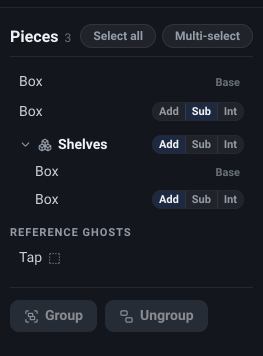
The Pieces list down the left of the editor is the object’s recipe: every piece it is built from, with the number of them beside the heading. It is laid out like the van editor’s Object List, and works the same way - rows you click to select, groups that fold away, and Group / Ungroup at the foot.
The order matters. The first piece is the base, and every piece below it is applied to the running result of everything above it. So a Subtract works on what is above it in the list and is untouched by what is below. That is why the same three shapes can give different objects depending on the order they are stacked in, and why moving a piece up or down can change the result rather than just tidying the list.
Beside the heading sit the two selection chips; under the pieces, any reference ghosts, then the Group and Ungroup buttons. Reordering and deleting a piece are done from the Inspector’s footer once it is selected, so that each row stays one narrow line.
An empty object reads No pieces yet, with a pointer to + Add primitive.
Build piece
Section titled “Build piece”What it is. One row per piece, in stack order. A solid shows its shape - Box, Cylinder and so on - and a group shows a stack-of-boxes icon and its name, in bold.
What it does. Clicking the row selects that piece, exactly as clicking it in the 3D view does, and the Inspector on the right turns to it. The selected row is highlighted, and a selected group highlights everything inside it as well.
Options and limits. Shift-clicking a row toggles it in or out of the selection instead of replacing it, so a second Shift-click on the same row takes it back out again.
Double-clicking a group row renames the group: Enter keeps the new name, Esc or clicking away leaves it as it was. The name is saved with the object, so it is still there when you open the object again.
Selecting a member from an unfolded group opens that group up in the scene so the member can be edited on its own.
What it affects. What is selected.
Combine mode
Section titled “Combine mode”What it is. The three-way Add / Sub / Int switch at the end of a row, with the current setting lit. They are short for Add, Subtract and Intersect.
What it does. Sets what this piece does to everything above it in the list. Add joins it on, Sub carves its volume away, Int keeps only the part where the two overlap.
Options and limits. The base piece shows a muted Base where the switch would be - there is nothing above it to combine with, so a mode would mean nothing. The same is true of the first member inside a group, which is the base of that group.
The 3D view colour-codes the choice while you are editing, which is the quickest way to read a stack: Add is drawn solid, Subtract translucent red and Intersect translucent green. Switch on Result to see what they actually produce.
A subtractor has to overlap something to do anything, and it is normal for it to stick out well beyond the object - a cylinder used to bore a hole should be longer than the thing it goes through.
What it affects. The shape of the finished object.
Reorder
Section titled “Reorder”What it is. The Move up and Move down buttons at the foot of the Inspector. They are greyed at the ends of the list.
What it does. Swaps the selected piece with its neighbour, moving it up or down the stack.
Options and limits. Only top-level pieces can be reordered, one at a time: with a member inside a group selected, or several pieces at once, the buttons are not offered.
Moving a piece into or out of the first slot changes what gets built, because the first piece is the base and its own combine mode is ignored - move a Subtract to the top and it stops subtracting. Its mode is remembered, though, so moving it back restores what you had.
What it affects. The order pieces combine in, and so the shape of the object.
Delete
Section titled “Delete”What it is. The red Delete button at the foot of the Inspector, or the Delete key.
What it does. Deletes the selected piece from the object. With a group selected it deletes the group and everything in it, and with a reference ghost selected it removes the ghost.
Options and limits. There is no confirmation, but it is undoable.
The list is allowed to go completely empty - the editor does not stop you - at which point Save greys out until you add a piece again.
What it affects. Removes the piece. Undoable.
Expand group
Section titled “Expand group”What it is. The chevron at the start of a group row.
What it does. Unfolds the group to show its members, indented under it, or folds them away again.
Options and limits. Groups start folded. Selecting a member - by clicking it in the 3D view, say - unfolds every group it sits in for as long as it stays selected, so the row you are working on is always in view.
It works at any depth, so a group inside a group opens the same way. An unfolded member row behaves like any other: it can be selected, its combine mode set, and it can be deleted. What it cannot do is reorder - that is top-level only.
What it affects. What the list shows. Nothing in the object.
Select all
Section titled “Select all”What it is. The first chip beside the Pieces heading.
What it does. Selects every top-level piece and every reference ghost at once.
Options and limits. It is greyed out only when there is nothing at all to select. It selects groups as wholes rather than reaching inside them, which is what you want for the two things it is for: moving the whole build together, and setting one colour or texture across everything in it.
What it affects. What is selected.
Multi-select
Section titled “Multi-select”What it is. The second chip. It stays lit while it is on.
What it does. Makes every click add to or remove from the selection instead of replacing it, so you can gather several pieces without holding a key.
Options and limits. Shift-clicking does the same thing one click at a time and needs no toggle; the chip exists so that the same job works with a trackpad or a touchscreen. It stays on until you turn it off.
One useful difference: with it on, clicking empty space leaves your selection alone, where an ordinary click there would clear it.
What it affects. How clicks are interpreted.
What it is. The Group button at the foot of the list. With several things selected the Inspector’s footer carries it too.
What it does. Puts the selected pieces into one group that moves and turns as one and shows as one row in the list. What happens depends on what you have selected:
- No groups - a new group is made, called Group 1, Group 2 and so on.
- One group and some pieces - the pieces join that group, at the end of its members.
- Two groups or more - you are asked how to combine them. Pick one to lead and the others go inside it as sub-groups, or choose New group to put them all in a fresh group. Any loose pieces in the selection join the result either way.
Only a group set to Add can be joined or lead. A group set to Subtract or Intersect would change what joins it - a solid would start cutting - so a selection whose only groups cut is put into a new group instead, with those groups kept whole inside it.
Options and limits. It needs two or more things selected, and every one of them must be a top-level piece - so a selection that includes a reference ghost, or a member you drilled into inside another group, leaves the button greyed.
Two things about the result are worth knowing before you press it. The result - a new group or the group being joined - goes in the first selected piece’s slot, so grouping pieces that were not adjacent moves them together, and that changes the fold order, which can change the shape. And a group combines as one unit, so a piece that used to carve something outside the group stops doing so. Both are the ordinary consequence of “treat these as one thing”, and Undo takes them back.
A group that arrived from From Catalogue or From Current Van keeps the name of what it came from. Groups and their names are saved with the object, so opening it again - a catalogue object you opened to build from included - finds it grouped as you left it. Double-click a group’s row to rename it.
What it affects. The structure of the object, and possibly its shape. Undoable.
Ungroup
Section titled “Ungroup”What it is. The Ungroup button beside Group. With a group selected the Inspector’s footer carries it too.
What it does. Dissolves the selected group, putting its members back into the stack where the group was.
Options and limits. It needs exactly one top-level group selected. The members keep their positions and their combine modes, except the first, which takes the group’s mode. Nothing is left selected afterwards.
It is also the answer when a nested group is in your way: ungroup the outer one to bring the inner pieces up to the top level, where they can be reordered and moved as one again - or use Remove from group below if only one member needs to come out.
What it affects. The structure of the object. Undoable.
Remove from group
Section titled “Remove from group”What it is. The Remove from group button at the foot of the Inspector, which appears only when the selection is a single piece sitting inside a group.
What it does. Lifts just that one piece out, up one level - into the group’s parent, or to the top of the list if the group wasn’t nested in another - leaving the rest of the group intact.
Options and limits. Unlike Ungroup, this takes only the selected piece, not the whole group. If the piece you lift out was the group’s only member, the now-empty group disappears and the piece takes its place.
What it affects. The structure of the object, and in most cases not its shape. A piece that was set to Add inside its group (or was the group’s first piece) takes the group’s own mode as it comes out, so a piece lifted out of a Subtract group keeps subtracting. If you lift out the group’s first piece, the next one becomes the first and is reset to Add. Only a piece set to Subtract or Intersect inside its group, or one lifted out of an Intersect group, keeps its own mode and can change the shape, as Ungroup’s combine-mode note describes. Undoable.
Related
Section titled “Related”- Adding pieces - where the rows in this list come from.
- Shaping a piece - the Inspector, and the controls for whatever you select here.
- The editor toolbar - Result, for checking what the stack builds.