
Camera and navigation
Getting the camera where you want it is most of the work of designing in 3D. VanCAD gives you two ways to move it, two ways to project it, a cube that snaps it to a standard view, one button that puts it back, a slider that zooms without the scroll wheel, and one that widens how much it sees.
Orbit / Fly
Section titled “Orbit / Fly”What it is. A single toolbar button that names the mode you are in and switches to the other when pressed: Orbit to circle a fixed point, Fly to stand inside the van and look around.
What it does.
- In Orbit, dragging turns the camera around a point in the middle of the van, as though the van
were on a turntable. Right-dragging slides that point (a pan), and the scroll wheel moves in and
out. This is the mode for arranging a layout.
- Middle-dragging (pressing the scroll wheel and dragging) turns the camera around the point you pressed on instead - an object, a wall, the floor, the ground beside the van. A small red dot marks that point while you hold the button, and it stays put on screen as the view turns round it, so you can inspect one corner closely without the view swinging away from it. Let go and an ordinary drag turns about the middle of the view again. The middle button no longer zooms here; the scroll wheel does.
- On a laptop trackpad, a two-finger scroll slides the view and a pinch zooms - the gestures you would expect from any other drawing or map app. VanCAD works out which device sent the gesture, so a mouse wheel still zooms as it always has. To slide the view freely in both directions at once, use a two-finger click and drag: that is the trackpad’s right-drag, and it is the same pan, unrestricted (see below for why the scroll is not).
- In Fly, the camera stays put and dragging turns your head instead. Right-dragging slides you sideways and up or down, and the scroll wheel walks you forwards and backwards along the direction you are looking. This is the mode for judging whether the space feels right from inside it.
Options and limits. A two-finger scroll pans along one axis at a time: start it moving straight up and it keeps to the vertical until you lift your fingers and start again, and the same sideways. That is your browser, not VanCAD - Chrome and Safari commit a trackpad scroll to whichever direction it began in (they call it railing) and report the other direction as zero movement, so the page is never told about it. Every canvas app on the web behaves this way. Starting the scroll diagonally avoids the lock, and a two-finger click and drag is never railed at all, so that is the gesture to reach for when you want to move the view in both directions in one go.
Fly is always drawn in perspective - walking forwards has no meaning in an orthographic projection - so the projection toggle has no visible effect until you switch back to Orbit. In either mode, dragging one of an object’s coloured handles moves the object, not the camera; the camera stands aside for the drag and picks up again afterwards. Switching modes never jumps the view: Fly starts looking at exactly what Orbit was showing. While Fly is on, a notice in the top-right corner of the 3D view says so and carries the way out (see below).
What it affects. Nothing in your design. Where the camera is is not saved, and it is not an undoable edit.
Exit Fly Mode
Section titled “Exit Fly Mode”What it is. A small notice that appears in the top-right corner of the 3D view for as long as Fly is on, naming the mode, listing its three controls, and carrying a button that leaves it.
What it does. Pressing Exit Fly Mode puts you back in Orbit, exactly as pressing the toolbar button again would. The notice then disappears, and it comes back the next time Fly is turned on.
Options and limits. The notice is not dismissible on its own: while it is on screen you are in Fly mode, so it is a readout of the state rather than a message to close. It sits over the 3D view and does not block it - the design behind it still turns and selects normally.
What it affects. Nothing in your design, and nothing that is saved.
Perspective / Orthographic
Section titled “Perspective / Orthographic”What it is. A single toolbar button labelled Persp or Ortho for the projection in use,
switching to the other when pressed. On a phone or tablet layout it is a two-option control in the
options (...) menu instead.
What it does. Perspective draws the van the way an eye or a camera sees it: things further away are smaller, and lines that are parallel in reality converge on the screen. It reads as realistic, and it is the better mode for judging how a space feels. Orthographic removes that convergence - parallel lines stay parallel and an object is drawn the same size wherever it sits - which is what CAD elevations do, and what makes it the better mode for lining things up and comparing sizes by eye.
Options and limits. The switch preserves your viewpoint: the camera keeps its position, its target and its apparent scale, so the van does not jump or resize as you toggle. While Fly is active the projection is forced to perspective (see above).
What it affects. Only how the scene is drawn.
Navigation cube
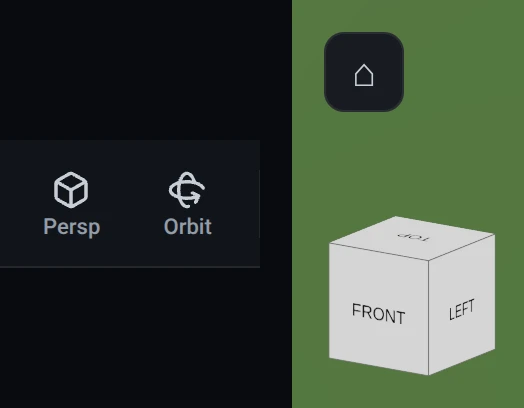
Section titled “Navigation cube”What it is. A small orientation cube in the bottom-right corner of the 3D view that mirrors the camera’s current heading.
What it does. Clicking a face of the cube snaps the camera to that straight-on view - Front is the cab end, Back the rear doors, and Top looks straight down into the van. Clicking an edge or a corner snaps to a halfway or three-quarter view, which is how you get a clean isometric-style angle in one click.
Options and limits. The cube changes orientation only - it does not re-centre or re-zoom, which is what Home is for. It is a desktop control; on a phone, pinch and drag instead. The cube is hidden in Fly mode, where you steer the camera directly and snapping to a standard orbit view has nothing to pivot around. It is hidden while you are drawing an opening or shaping a sheet too: there the camera is locked square to what you are drawing.
What it affects. Nothing in your design.
What it is. The first button in the view strip, the bar along the bottom of the 3D view. On a phone it sits in the bottom-right corner of the view instead.
What it does. Returns the camera to the view the design opened at: its position, what it is pointed at, and how far it is zoomed.
Options and limits. Home is greyed out in Fly mode, which has no starting view to return to - leave Fly first. While you are drawing an opening or shaping a sheet, Home changes job to match and reads Recentre: it re-frames the surface or the piece you are drawing on, rather than throwing you out of the drawing view. On a narrow window, a control the strip has no room for moves into its More menu at the right-hand end.
What it affects. Nothing in your design.
What it is. A slider in the view strip, beside Home, with a magnifying glass at its left and a minus and a plus button either side of the track.
What it does. Drag the slider to the right to bring the camera closer to the middle of the view, and to the left to take it further away. Each press of plus or minus takes one step nearer or further from wherever the camera is now, the same size of step whatever the distance. It follows the camera too: zoom with the scroll wheel and the slider moves with you. It works the same in perspective and orthographic, and switching between the two afterwards keeps the view the same size.
Options and limits. The slider covers everything from 1 m to 30 m from the middle of the view, which is also its answer to a scroll wheel that zooms too slowly: one drag goes from end to end. The scroll wheel is not limited to that range. Past either end, the slider sits at that end, the button that would go further is greyed out, and the other button steps back towards it without jumping. The slider is greyed out in Fly mode, where the scroll wheel walks you forwards instead. On a narrow window, the slider moves into the strip’s More menu and keeps working there.
What it affects. Nothing in your design.
Field of view
Section titled “Field of view”What it is. A slider in the view strip, after Zoom, with an eye at its left and a minus and a plus button either side of the track. A small mark on the track shows the starting value.
What it does. Drag to the right to widen the view: the camera stays exactly where it is and takes in more around it, which is what you want when you are standing inside the van in Fly mode and can only see a slice of one wall. Drag to the left to narrow it, which flattens the view and cuts the stretching a wide angle gives the edges of the picture. Plus and minus step 5 degrees at a time. Dragging near the mark drops the slider onto it, so the starting value is easy to find again.
Options and limits. The slider covers 30 to 90 degrees. Orbit and Fly each keep their own setting, so widening Fly does not stretch your orbit views: Orbit starts at 50 degrees, as it always has, and Fly starts wider, at 75. Both are remembered on this device for next time, and Home does not reset them - Home puts the camera back where it started, this is how it looks. The slider is greyed out in orthographic, which has no field of view, and while you are drawing an opening or shaping a sheet, which use orthographic. On a narrow window it moves into the strip’s More menu.
What it affects. Nothing in your design.
What it is. A button at the right-hand end of the view strip, there only when the strip is too narrow to show all of its controls.
What it does. Opens a menu of the controls that did not fit, each working exactly as it does on the strip. Controls move into it one at a time as the window narrows, always in the same order, and back out onto the strip as it widens.
What it affects. Nothing in your design.
Related
Section titled “Related”- The Visuals settings - auto-rotate, ground and sky, and the guide lines shown while you drag.
- Selecting, moving and resizing - the on-object handles the camera stands aside for.
- Tutorial: Quick User Interface Guide, in the app under Tutorials.