
Your account
Everything about you rather than about the design lives in one menu at the right-hand end of the toolbar. Designing needs a free account, so this is normally where you find out which account you are on, manage your subscription, and sign out.
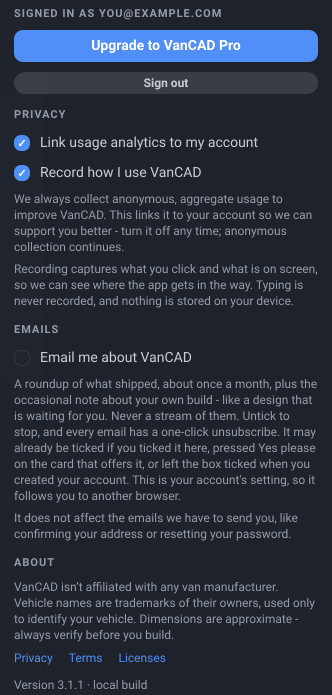
Account
Section titled “Account”What it is. The person icon at the right-hand end of the toolbar.
What it does. Opens the account menu.
Options and limits. From the top, it holds: Signed in as and your email address; the subscription control - Upgrade to VanCAD Pro or Manage subscription; Sign out; the Privacy block below; the Emails block; and an About block carrying the manufacturer disclaimer and the three legal links. The last line is the running build’s version, date and commit, which is worth quoting if you report a problem.
This menu is about the account, and only about the account. Settings that are about the app - the theme, the units and the bill-of-materials currency - are in the Settings menu beside it, on every layout, and controls the toolbar is too narrow to show go to the bar’s own More menu. So nothing is ever in two menus at once.
What it affects. Nothing on its own.
Log in / Sign up
Section titled “Log in / Sign up”What it is. The row the menu shows in place of the subscription and Sign out rows when nobody is signed in.
What it does. Closes the menu and takes you to the sign-up screen, or to the log-in screen on a device you have signed in on before. Each has a link to the other at its top right.
Options and limits. Designing requires an account, so in practice you meet this screen on the way in rather than from this menu. Continue with Google comes first; Continue with email opens the email and password form. On a phone the screen says VanCAD is built for desktop and offers Explore demo builds; the account buttons appear when you press Have an account? Log in at its top right, or Build your own in the demos.
If you have forgotten your password, open the log-in screen, press Continue with email, type your email address and press Forgot password?. We email you a link; opening it signs you in and asks you to choose a new password. You can skip that step, in which case your old password keeps working and you can ask for another link any time. There is no separate change-password control: asking for a reset link is how you change it. Note that the link works once, so if you reload the page before choosing a new password you will need a fresh one.
What it affects. Nothing until you sign in.
Sign out
Section titled “Sign out”What it is. The row under the subscription control.
What it does. Signs you out and returns you to the landing screen.
Options and limits. It signs you out everywhere you are signed in, not only in this browser - another browser, or a machine you left signed in, is signed out too and will ask you to log in again next time. Your list of saved designs is cleared as it goes - they are on your account, not lost - and any subscription VanCAD was showing drops back to free until you sign in again.
Save first if you want to keep what you have open. There is no “are you sure”.
What it affects. Your signed-in sessions, on every device.
Link analytics to my account
Section titled “Link analytics to my account”What it is. A checkbox in the Privacy block, with a paragraph under it explaining the two things it separates.
What it does. Ticked - the default - anonymous usage analytics are linked to your account, so we can see the history of a problem you report and support you better. Unticked, they are not linked to you.
Options and limits. What it does not control is whether anything is collected at all: anonymous, aggregate usage is always collected, and the copy beside the box says so rather than implying a master switch. What is never collected either way is the content of your designs.
Two cases change what you see. If your browser sends a Do Not Track or Global Privacy Control signal, the box is shown unticked and greyed - the browser’s answer already stands and there is nothing to decide. And if you are not signed in there is no box at all, only the explanation, since there is no account to link anything to.
Your choice is remembered on this device, and takes effect immediately.
What it affects. Whether usage analytics carry your account. Nothing in your design.
Record how I use VanCAD
Section titled “Record how I use VanCAD”What it is. A second checkbox in the Privacy block, below the linking one. Unlike that one, this one does switch something off.
What it does. Ticked - the default - VanCAD records what you click and what is on screen while you design, so we can watch where the app gets in the way rather than guessing from counts. Unticked, nothing is recorded.
Options and limits. What is recorded is the picture and the pointer: which panels you open, what you drag, what the 3D view looked like at the time. What is not recorded is anything you type - every text box is masked before the recording leaves your browser, so passwords and feedback are never in it - and your email address is masked wherever the app shows it.
Because it is a picture of the screen, a recording does show the design you were working on and the name you gave it. It is not a copy of your design file, and nothing is extracted from it.
No identifier for this is kept on your machine, which is why VanCAD still has no cookie banner: a recording lives for one page load and is sent as it happens. Reloading the page starts a new one. (Turning recording off is remembered on this device - that one choice is the only thing stored.)
One thing can turn it off without you touching the box. If your browser sends a Do Not Track or Global Privacy Control signal we do not record at all, and the checkbox is not shown - your browser has already answered.
Turning it off applies immediately, stops the recording in progress, and is remembered on this device.
What it affects. Whether your use of the app is recorded. Nothing in your design, and nothing about what the app will let you do.
Email me about VanCAD
Section titled “Email me about VanCAD”What it is. A checkbox in the Emails block, under the Privacy one.
What it does. Ticked, we email you a roundup of what shipped in VanCAD and what is coming next, about once a month, plus the occasional note about your own build - for example, that the design you were working on when your free session ended is still waiting for you. Never a stream of them. Unticked, we send neither.
Options and limits. There are three ways it can already be ticked when you first open this menu, and all three are something you saw:
- you left the ticked box on the sign-up form as you created your account;
- you ticked this box; or
- you pressed Yes please on the card that offers these emails.
Nothing else turns it on. Subscribing does not, dismissing that card does not, and using the app does not. The only thing that keeps you on the list is leaving this box ticked.
Unticking takes effect immediately rather than in a few days, and so does the unsubscribe link at the foot of every one of these emails - that link works without signing in, which is deliberate: you should not have to find your password to stop an email. Your mail program’s own Unsubscribe button, if it shows one, works too.
Unlike the two Privacy checkboxes above it, this one is a setting on your account rather than on this browser, so it follows you to another device.
If you unticked the box at sign-up, you were never added, and this box will be unticked here.
What it affects. Only the roundup and those one-off notes. The emails we have to send you - confirming your address, resetting your password, telling you a van you asked about is ready - are not marketing and are not covered by this box.
Privacy
Section titled “Privacy”What it is. The first of three links at the foot of the About block.
What it does. Opens the VanCAD privacy policy on the main site, in a new tab.
What it affects. Nothing.
What it is. The second link.
What it does. Opens the VanCAD terms of service, in a new tab.
What it affects. Nothing.
Licenses
Section titled “Licenses”What it is. The third link.
What it does. Opens the acknowledgements page - the open-source software and the assets VanCAD is built with, and their licences.
What it affects. Nothing.
About, and the van names
Section titled “About, and the van names”The paragraph above those three links is worth reading once. VanCAD is not affiliated with any van manufacturer; the vehicle names in the app are their owners’ trademarks, used only so you can identify your own van; and the dimensions are approximate, so verify them before you cut anything.
The same About block, with the same three links, is in the ⋯ menu of the demo explorer, so it is reachable without an account.
Related
Section titled “Related”- Subscription - the control directly above Sign out.
- Saving and loading - what an account keeps for you.
- Sessions and limits - the free session, and what a subscription changes.